Pair RX-PANEL with MTRA via MS Teams
To allow for advanced meeting functions, your RX-PANEL must be paired at MS Teams level with the meeting room's MTRA device (RXV200 or RXV81).
| ➢ | To pair RX-PANEL with an MTRA: |
-
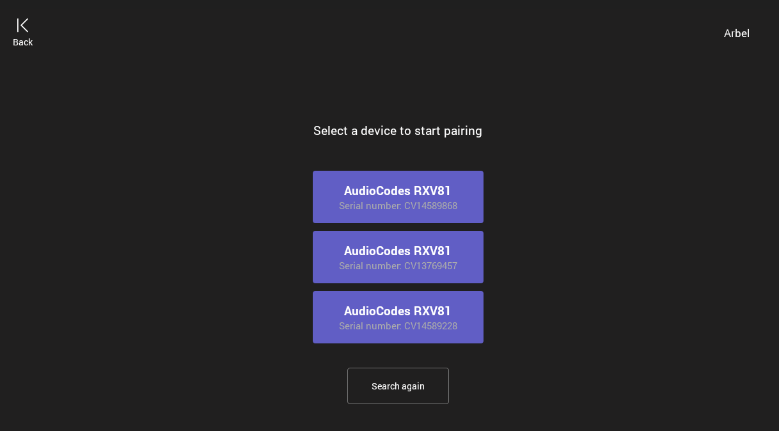
1. If not already logged in, log in to Device Administration to get admin access (see Log in to Device Administration). 2. Under ‘Device admin settings’, scroll down and tap Teams Admin Settings, then tap again Teams Admin Settings. 3. In the ‘Teams Admin Settings’ menu, tap the Device Pairing option in ‘Teams Admin Settings’ menu. The available MTRA devices are displayed. 4. Tap the relevant device to pair it with your RX-PANEL.
-
5. Tap the Backgrounds option to select a background of your choice.
-
6. Click the LED settings option to select the LED color indicating busy state.
-
7. Click the Meetings option to define advanced meeting check-in functions.